|
 |
 |
 |
 |
 |
 |
 |
 |
 |
 |
 |
 |
 |
 |
 |
 |
 |
 |
 |
 |
 |
 |
 |
 |
 |
 |
 |
 |
 |
 |
 |
 |
 |
 |
 |
 |
 |
 |
 |
 |
 |

Tutorials, tweaks, and tech news
|
|
|
|
|
|
|
|
|
|
|
|
|
|
|
|
|
|
|
|
|
|
|
|
|
|
|
|
|
|
|
|
|
|
|
|
|
|
|
|
|
|

Grooveshark has just released their Last.FM scrobbling features to VIP-only users, along with a new settings page and Chinese language support. Check out the original post here.

TwURLa is a new site where developers of all kinds can search and find stats for their domain and how it performs on Twitter. The site aggregates your daily “hits”, which are the amount of times that your site appears on Twitter. The site is currently in development, however they have hit a roadblock from the Twitter team:
We have been in contact with Twitter regarding their API use and about what data we are “allowed” to show on our site. At this point, we are not allowed to show ANY …

As you may have noticed, this website has not been updated in a while. This is because all 3 of the writers are busy on some projects — These are Stix and iSociale. Jimmy and Colum have done much work on the iSociale project, but after the Stix project gets going and done, I will be helping out with iSociale by combining the design aspects with the backend system. But here I would like to write about the Stix social networking application that will be soon released to the public. …

Just as you like it, when signed in with your Google account, you can change the search results based on your choosing. A great feature (still experimental, not sure if it will be released as a full service) called SearchWiki with sound adds an explosion sound effect every time you remove a search result you don’t like.
- This is definitely a great way to receive input from Google users (its just like a voting system, only way cooler)
Having a bad day at work and feel like killing some of those …
There are several features that are missing from Twitter home page, such as Mentions, Translations, Searching from the homepage, and Popular Trends. I was disappointed that Twitter did not already have some of these features built it. Thanks to a few Greasemonkey (Requires Mozilla Firefox) scripts, this is now possible.
Twitter Translate – If you are following someone on Twitter who speaks a different language than you, the Twitter translate greasemonkey script will automatically translate their tweets into your language.
Twitter Search Bar – The Greasemonkey script is called “Enhance Twitter” but I …
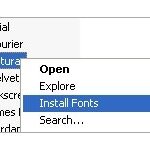
The process to install fonts on Windows is somewhat lengthy, especially if you have multiple font files to install.
Thanks to ClickFont, installing fonts is a one step process. ClickFont allows you to right click on a font file and install it with an added right click extension. If you have a folder with multiple font files in it, ClickFont will automatically recognize the fonts and install them.
The ClickFont developer(s) says it is different from the SendTo function in Windows because ClickFont registers installed fonts properly with a system call.
Download ClickFont
Travis …