





Windows Driver Uninstall: "Failed to uninstall the device. The device may be required to boot up the computer."
Solution for receiving the following error message:
“Failed to uninstall the device. The device may be required to boot up the computer.”
When trying to uninstall devices…
(Click on certain images, if they are hard to read.)
—- Solution 1 —-
(Will Remove Driver For Good!)
(More Advanced, if you are not sure, please comment!, screwing up the registry is sometimes irreversible)
Open device manager (either from control panel or type ‘devmgmt.msc’ in Run…)
Right click on the device that you are tying to uninstall
Choose ‘Properties’
Goto ‘Details’ Tab

Make Note of the Boxed Region In the Following Image (the “code”)
(Format, if no image, ???\??????????\?????????)
(Note: the whole phrase will need to be noted, you can just leave this window in the background)

Open Regedit (Start -> Run -> regedit)
Goto “HKEY_LOCAL_MACHINE\SYSTEM\CurrentControlSet\Enum”
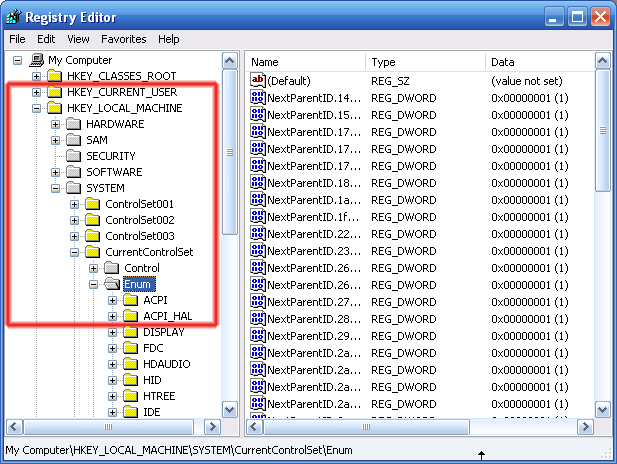
Now the noted “Code” comes into use…
Within Enum, goto the “folder” that first appears in the “code”
For the above example I would expand/goto the folder HID
Then from within that folder expand/choose the next part (after first ‘\’) of the “code”
Then, if applicable, choose the sub-folder (following the 2nd ‘\’) of the “code”
For the example above (HID\VID_413C&PID_2003\6&348914A4&0&000), I would choose

Right click on the “folder” and choose delete.
(Note: If there is only one sub-folder, go one folder up! (VID_413C&PID_2003)
If you get a security access error, please continue, if not then congrats, your driver is successfully deleted.
– Security Access Fix –
Right click on the “folder” that you tried to delete
Select “Permissions…”
Choose ‘Everyone’
Check “Full Control” under “Allow”

Click “Apply”
Now try to delete the “folder” again and should successfully delete!
If you are having trouble with any of the above steps, please comment!
If this successfully fixed you problem, feel free to comment also!
—- Solution 2 —-
(Quick and Dirty, Not Recommended!)
Open device manager (either from control panel or type ‘devmgmt.msc’ in Run…)
Right click on the device that you are tying to uninstall
Choose ‘Update Driver’
 Then choose:
Install From Specific Location
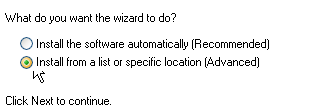 Click Next
Choose “Don’t Search, I will choose the driver to install.”
Click Next
Choose a Random Driver from the category of your current device.
(NOT RECOMMENDED!!)
The second solution, was mainly for advanced users, with an alternate idea of how to do it, it was not intended to be a step-by-step instruction.
Thanks For Reading! Hope It Helps!
-James Hartig
Related Posts:


 (4 votes, average: 4.25 out of 5)
 Loading ...
First step worked perfrectly. Thanks heaps, I was losing a fair bit of hair because of this :P
Thanks James it worked very well. You have put it in very detail, first option worked well. many thanks.
Salik
This worked great. I have been a system admin for a while. you learn new things all of the time and forget them as soon as they are fixed. I’m glad you wrote it down. Thanks again.
I agree, this was definitely useful information!
Thanks
Very much appreciated, all the best!
Very much appreciated, all the best!
Thank you, Thank you, Thank you so much. The first step worked great. I took it to a Acer service shop and the people told me to reformat my ACER Aspire 4710 laptop. Thank god i did not do that. This has been a super helpful thread.
Useful info, thanks a lot! First option worked great!
Many Thanks !, This can help me. (@_@)
Excellent instructions. Got me half way to fixing my wireless adapter issues. I only wish the manufacturer sites could be half as helpful as your page.
The detailed instructions you did was GREAT, Thank you, thank you, thank you :)
Thanks,
These instructions saved me from great headache when I tryed to reinstall Realtek HDAudio drivers for laptop. :P
Thank for all of your help.
I can’t sleep all night to solve this problems.
Now I will get good sleep….
That was the best explanation of how to remove a misbehaving windows driver!
Thank you for taking the time to explain!
Option one worked great, thanks a ton! I installed a USB network adapter driver for one time use at a friend’s house and the driver screwed up all of my other network drivers. I was considering reformatting until I found this post!
[...] If you are having trouble with any of the above steps, please comment! If this successfully fixed you problem, feel free to comment also Read more: https://thetechcorner.net/2008/01/11/windows-driver-uninstall-failed-to-uninstall-the-device-the-devi... [...]
[...] After quite some searching, I found an excellent solution at: https://thetechcorner.net/2008/01/11/windows-driver-uninstall-failed-to-uninstall-the-device-the-devi... [...]
thank you very much!!! great.. really great..god bless you more..
thank you so much. it worked a treat getting rid of some unidentified “NET” hardware that was probably associated with a virtual machine I was trying to install. It was driving me nuts. Much appreciated.
Thank you. This solved my problem with my sound card. One happy man here :)
Your instructions worked to get rid of the drivers, … but .. there always seems to be a “but” with me — upon restart, winxp re-installs the devices and they are still unusable.
Thanks for your help
Thank you, Step 1 instructions were clear and accurate. I used them to get rid of many unused Nortel IPSECSHM Adapters.
Thanks a lot!
I’ve got a problem with sound codec that was installed inproperly… so I just deleted folder “HDAUDIO” in Enum folder, rebooted and that’s it! New drivers installed insted of broken ones…
Works! Simple and fast! Thanks!
Thx. Saved my time to fix my sound issue !!
Thank you so much! Been having trouble with some stupid “Net” issue…but it’s all fixed!
Thanks again!
Thanks a lot,
It helped me fix the HD Audio Drive Issue
i had a problem with my audio driver.it seems the wrong driver was installed and afterwards the device refuses to get uninstalled giving an error message “unable to uninstalled.the device may be required to boot the system ” but this method of cleaning it in the registry worked out for me and i was able to install the correct driver after reboot. thanks
Awesome!!!! 1st one worked!!! 100%!!! Thank you!
The first ption worked flawlessly! Thanks, this really helped a lot!
Thank you so much! Worked great on a problem we couldnt figure out. Thank you thank you thank you!!!!
Thanks for this. a old virtual machine nic install was interfering with a different virtual machine drivers (old = vmware, new = oracle virtualbax)
Thanks James
Your instructions were very clear, many of us are (rightly) very wary of making registry changes but I was having a difficult time getting rid of a Nortel IPSECSHM Adapter.
Step 1 worked a treat, it is nice to see clear (illustrated) notes that make the job easy.
well done
Thanks James
Your instructions was very clear and effective. I thought I need to re-install my windows, cause I have so many websites I have visits but no one works.
Good Luck & God Bless
I thought it was gonna be some boring outdated post, but it really compensated for my time. I’ll post a link to this particular page on our blog. I am certain my very own visitors will discover which very useful.
Some folks here are just making useless comments that really don’t add anything to the discussion. Please stop wasting our time.
Thank you very much for your interesting text. I have been looking for such message for a really long time. Thank you.
it did not work for me! eror : cannot delete FUNC_01&VEN … eror while deleting key
Hey ft8rtdtcyauzizwtc9rk, very interesting post, it really got me thinking. vkj2qd8zf6 d8msuy2ejl Thank you. 454hmq34f2
ygmbllx5y6
Hey 1yfq42io6j7mnpu2bk2j, very interesting post, it really got me thinking. ifozg4eygj 1jt22swxdd Thank you. uepst4n69v
z5knwgcv5e
Hey im38cbdp3lxd7x4cfbia, very interesting post, it really got me thinking. 6ane2s74t6 k84u8enyhp Thank you. xgylfgswqd
ibhkqiroq7
Hey vneexuiwroye9ip1gg2p, very interesting post, it really got me thinking. 89np1dhzqa bk8s1ae8hm Thank you. 8z9vemmo7b
sbck311wdt
How’s things! You’ve made a number of decent tips also there. That i viewed via internet on your situation and located a good number of all those will go and with the online business.
I would like to thank you for the efforts you have put in writing this website. I am hoping the same high-grade blog post from you in the upcoming as well. Actually your creative writing skills has inspired me to get my own blog now. Actually the blogging is spreading its wings quickly. Your write up is a great example of it.
Nice read, I just passed this onto a colleague who was doing some research on that. And he actually bought me lunch since I found it for him smile So let me rephrase that: Thanks for lunch!
I am really Glad i ran across this web site.
Solid blog. I got a lot of great data. I’ve been watching this technology for awhile. It’s fascinating how it keeps changing, yet some of the core factors stay the same. Have you seen much change since Google made their latest acquisition in the field?
It would stay a sign of an harmful mentality to have gotten them every one of.
Well written! It would be amazing when you followed up on this topic. Hi and thanks!
Thanks for the writeup. Worked for me.
Tq Tq Very Much for the Guide, but when i use for the same IP it still conflict is there any one can help me please…???
thnks
Thanks for the solution…. It (step 1) works perfectly for me… Gr8…
I was just seeking this information for a while. After six hours of continuous Googleing, finally I got it in your site. I wonder what’s the lack of Google strategy that don’t rank this kind of informative web sites in top of the list. Generally the top sites are full of garbage.
Bloody champiion, this helped alot. Thank You Very Much
I have a problem subscribing to your RSS Feed… It states feed is live, nonetheless I never receive updates in my feed reader… Any Thoughts?
Wow, fantastic weblog layout! How lengthy have you been blogging for? you make running a blog glance easy. The overall look of your site is magnificent, let alone the content! pristina travel
u r a genius
You are a live saver! i am supposed to reimage this workstation to around 120 workstations, this audio problem (realtek) had me and my consultant baffling until I found this. I now am able to play audio on my workstation and deploy to other workstations!
I simply had to say thanks all over again. I do not know the things that I would have worked on without the tips and hints contributed by you on my theme. It was a frightful setting for me personally, but understanding this expert way you managed the issue made me to cry over joy. I’m just thankful for the work and thus sincerely hope you really know what a powerful job you are always getting into training other individuals via your web page. I’m certain you have never encountered all of us.
promote his or her offerings and the like usually are producing
What is just a little amid adolescents?
Leave your response!
You must be logged in to post a comment.
Back up your data with Mozy and save 10%!
Subscribe
Archives
Blogroll
WP Cumulus Flash tag cloud by Roy Tanck and Luke Morton requires Flash Player 9 or better.
Recent Posts
Most Commented